
 |
Open Microsoft Outlook On the menu bar go to Tools  Account Settings Account Settings |
 |
Press the 'New' button underneath the E-mail tab, to setup a new e-mail account |
 |
Select the first option 'Microsoft Exchange, POP2, IMAP, or HTTP' Then click the 'Next > ' button |
 |
Tick the 'Manually configure...' option Then click the 'Next > ' button |
 |
Select 'Internet E-mail' Then click the 'Next > ' button |
 |
Fill out the fields with the supplied details, be sure to replace 'yourdomain.com' with your domain. Press the 'More Settings' button |
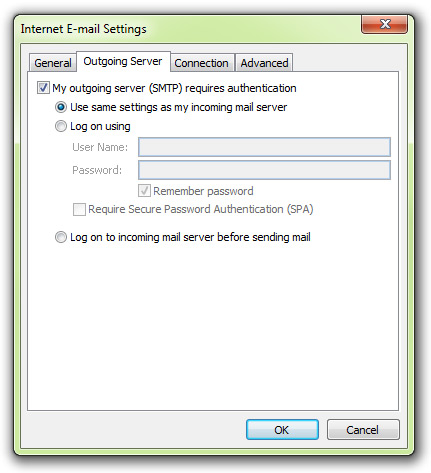 |
Go to the 2nd tab 'Outgoing Server' Tick the 'My outgoing server...' and make sure the 'Use same settings...' is selected Now click the 'OK' button |
| Press the 'Test Account Settings...' button | |
 |
If you have entered your details correctly both tasks will show a In the case an error appears please recheck the settings entered into the previous window. Once both tasks have been completed successfully you can click 'Next >' and then 'Finish' and close the Account Settings. |
 next to them (this means they were successful)